
Do you want to create an Elementor contact form? A contact form will let your visitors get in touch even if they don’t know your email address.
In this tutorial, we’ll show you the best way to add an Elementor contact form to your website. This method is easy for a beginner to follow, and you don’t need to use shortcodes.
Create Your Elementor Contact Form Now
How Do I Set Up an Elementor Contact Form?
The easiest way to set up an Elementor contact form is with the WPForms plugin.
WPForms works perfectly with the free or Pro version of Elementor.
It has an anti-spam system that uses secret tokens to prevent spambots filling in your forms. This is much more effective than a honeypot field, and it’ll be turned on for all of your new forms automatically.
You can also:
- Make unlimited forms
- Get unlimited responses
- Make payment forms for Stripe, Authorize.Net, and PayPal
- Use conditional logic to create forms that change dynamically
- Make multi-step forms
- Set up multiple form notification emails.
And here’s another thing that’s good to know. If you want to upgrade from the free version of WPForms to the paid version, you won’t lose any of the forms you’ve already made.
That makes WPForms the perfect choice if you’re a beginner.
Now you know why WPForms is the best contact form plugin for Elementor, let’s walk through the process of creating a contact form. This is an easy and fast process, and you’ll have a working contact form by the time you reach the end.
How to Make an Elementor Contact Form
This tutorial will show you how to create an Elementor form in Elementor itself. You don’t need to copy and paste code to make it work.
Here are the steps we’ll work through:
- Install the WPForms Plugin
- Create Your Contact Page
- Make Your Elementor Contact Form
- Publish Your Elementor Contact Form
Let’s get the plugin set up first.
Step 1: Install the WPForms Plugin
The first thing you’ll want to do is install the WPForms plugin.
If you need help with this, check out this easy tutorial on how to install a plugin in WordPress.
Now that WPForms is installed, be sure to click the Activate button.
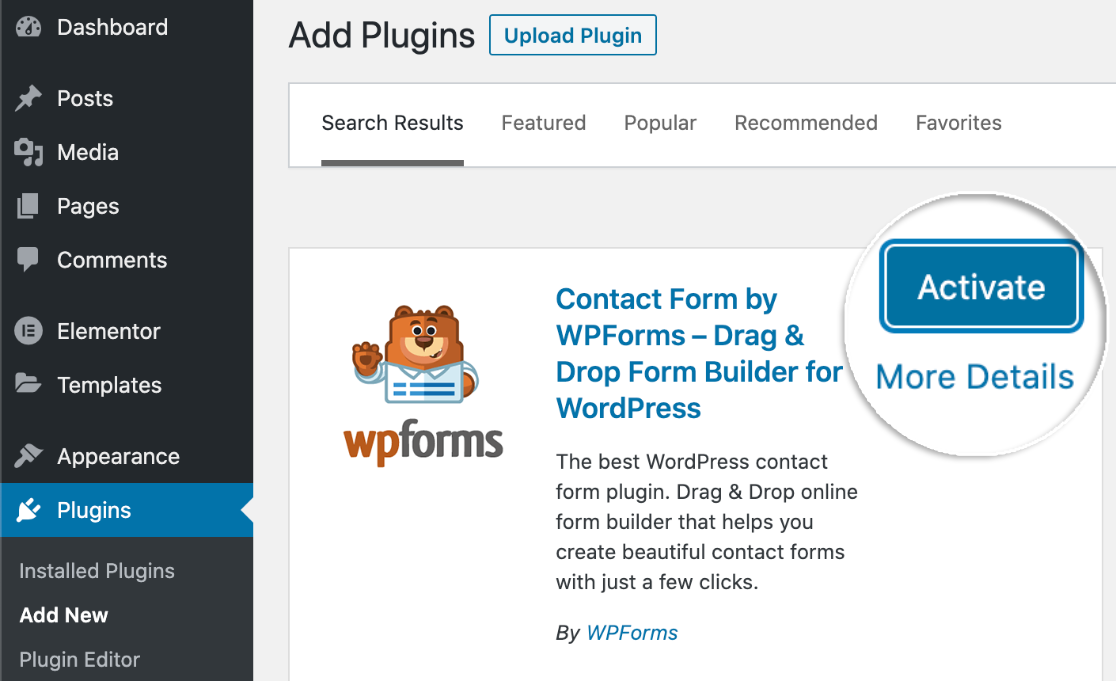
If you haven’t installed the Elementor plugin yet, you’ll need to do that now.
All set? Let’s create a page for the contact form.
Step 2: Create Your Contact Page
In this step, we’re going to create a Contact Us page.
From the WordPress dashboard, click Pages and click the Add New button.
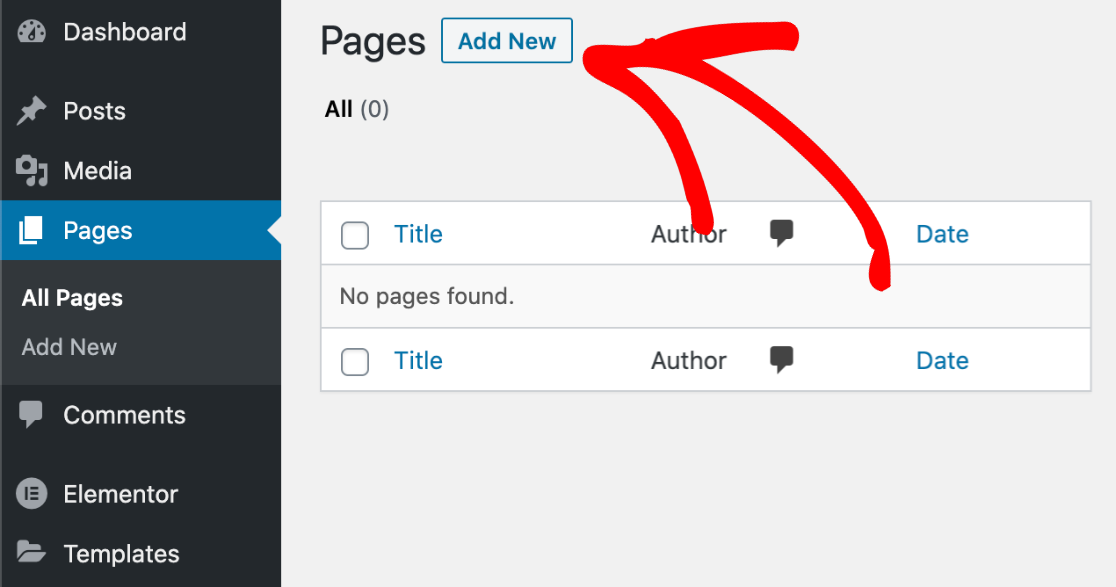
Go ahead and type your title at the top.
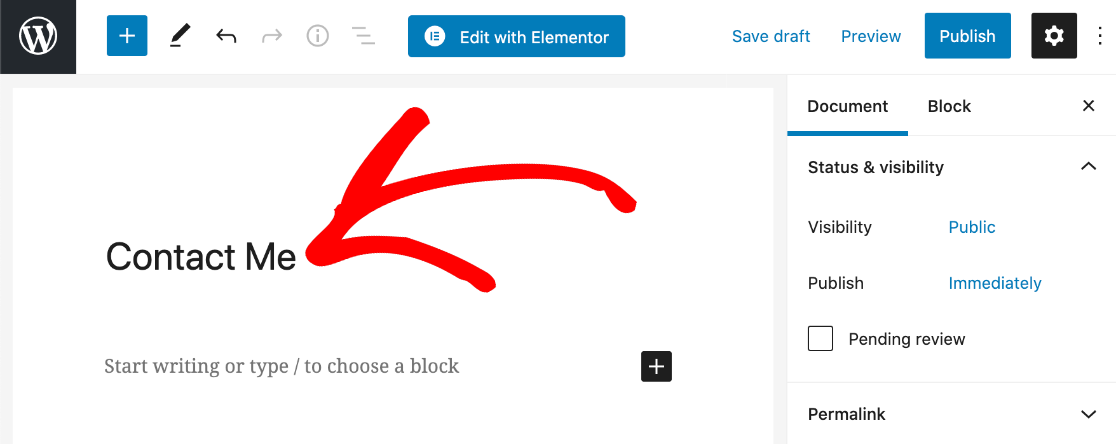
Now let’s switch to Elementor. Click the blue Edit with Elementor button at the top of the screen.
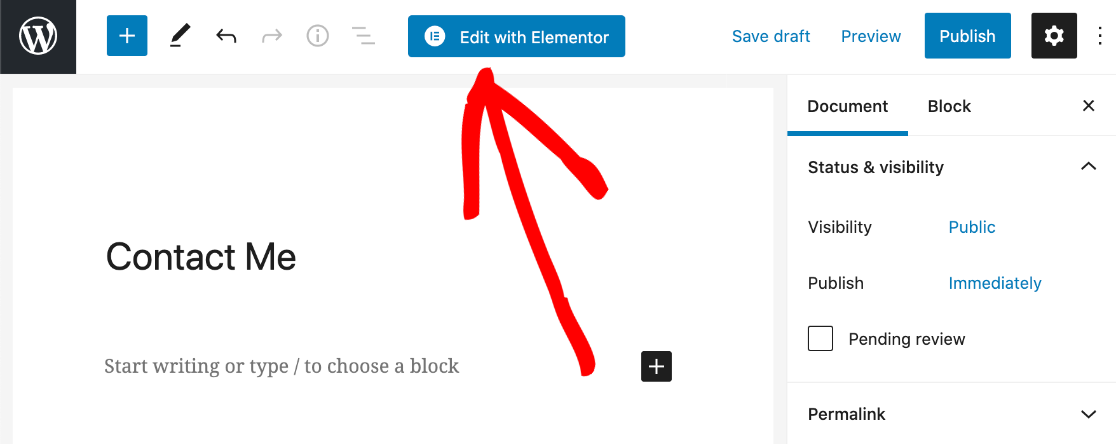
You’ll notice that the page has changed and the Elementor page builder has opened.
On the left, you’ll see different elements that you can add to your page. Find the WPForms icon in the Basic section and drag it onto your page.
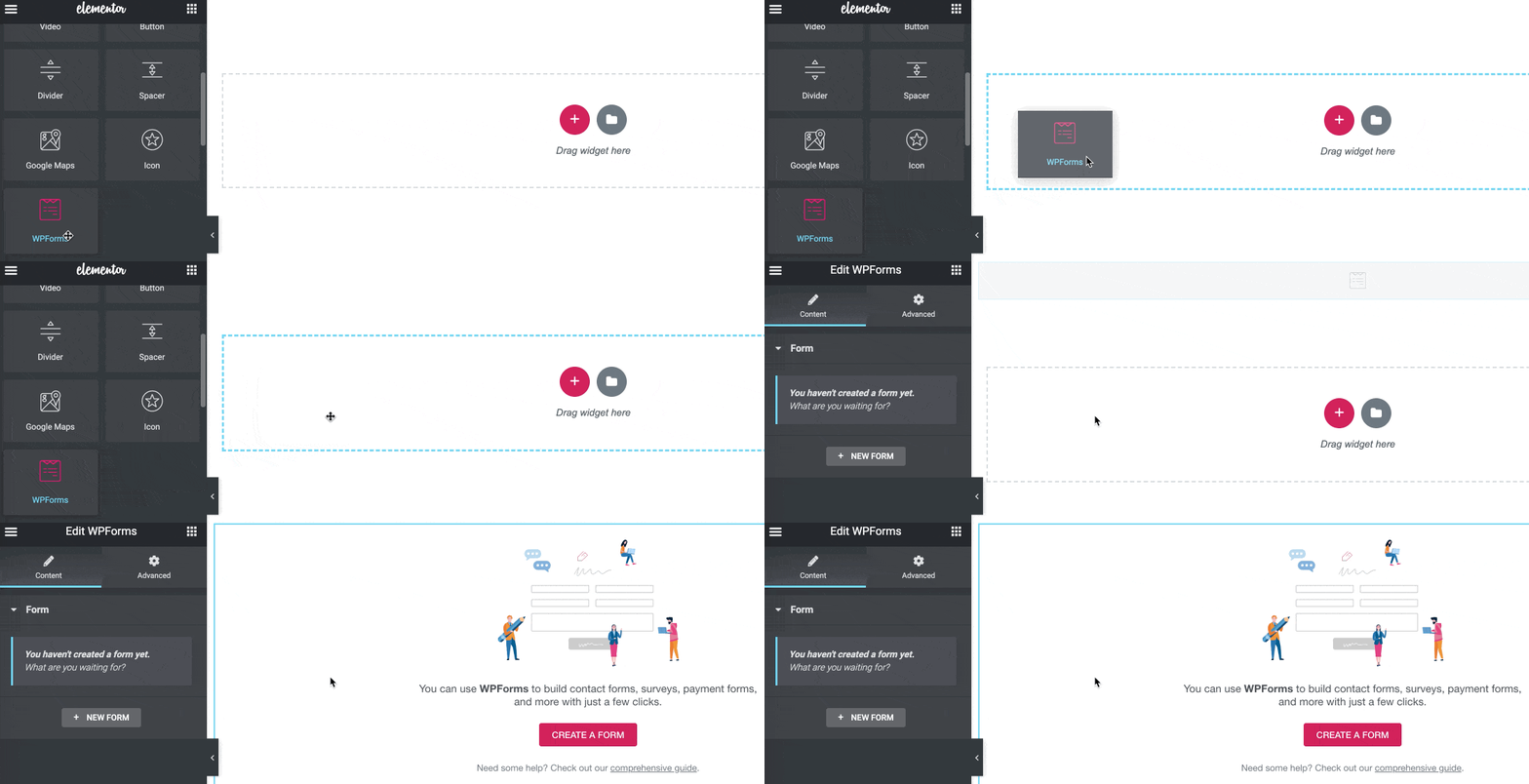
Now we’re ready to make your form. This will take less than 5 minutes.
Step 3: Make Your Elementor Contact Form
Next up, we’re going to make a form using a contact form template.
First, click Create a Form.
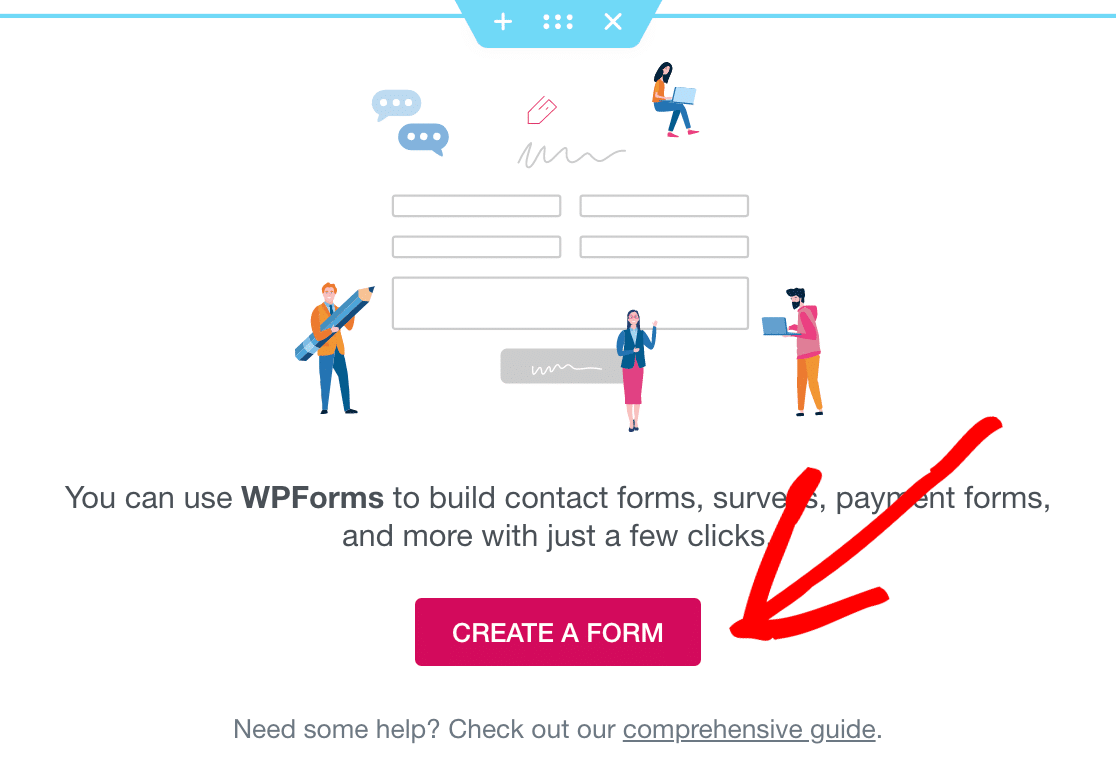
The WPForms form builder will pop up. Now you can type in a name your form at the top.

Scroll down a little and you’ll see the form templates. Search for the Simple Contact Form template and click on it.
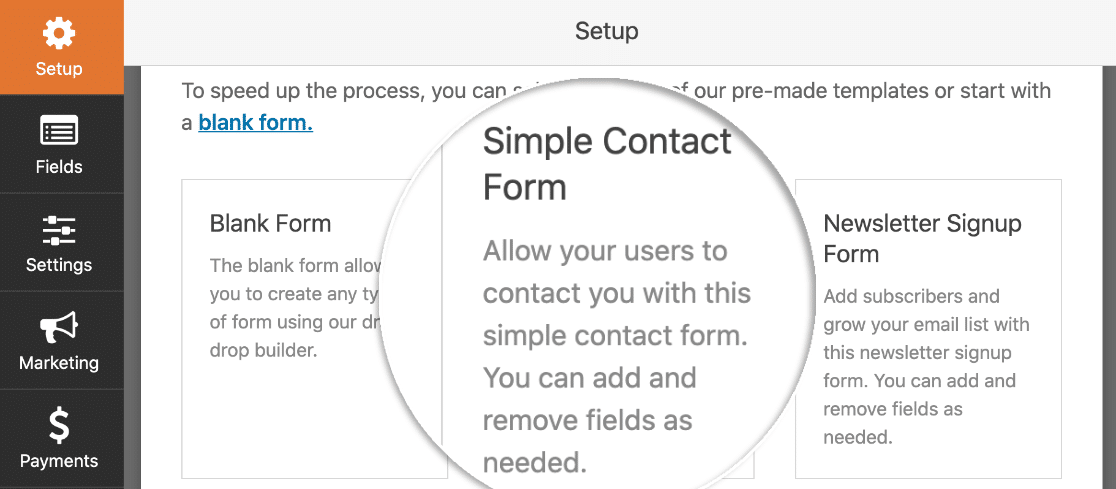
Now you’ve chosen a template, the WPForms builder will open. On the left, you can see all of the fields that are available to add to your contact form. On the right, you can see a live preview of your form.
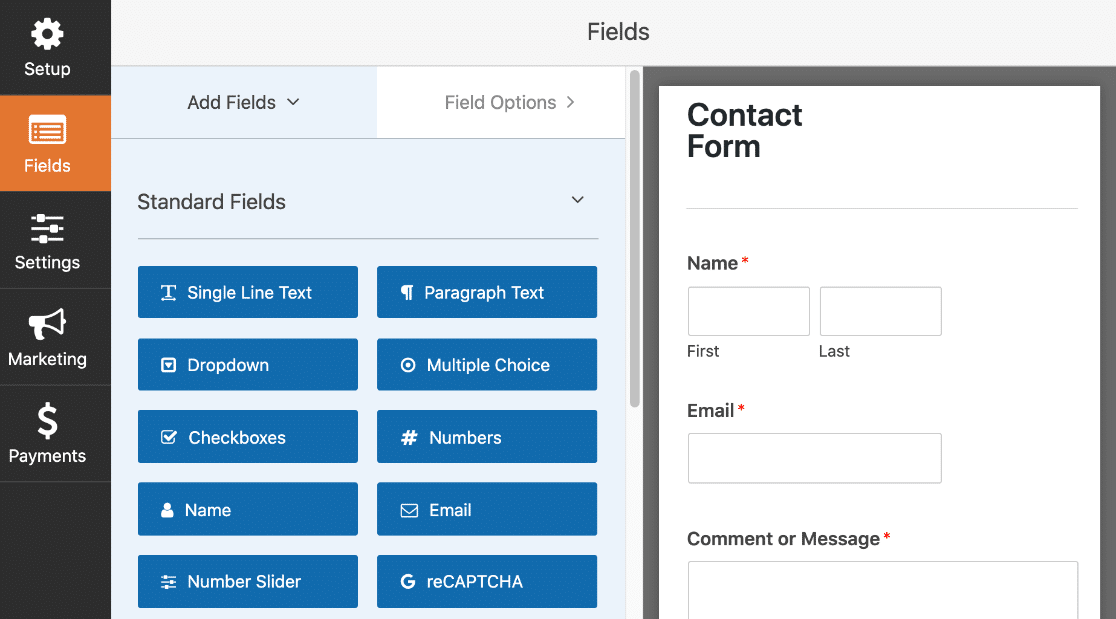
If you want to customize the template, just drag any field from the left hand pane to the form on the right. You can add dropdown lists, multiple choice questions, and more.
You can also drag fields up and down to move them around.
If you want to change the settings for a field, just click on it.
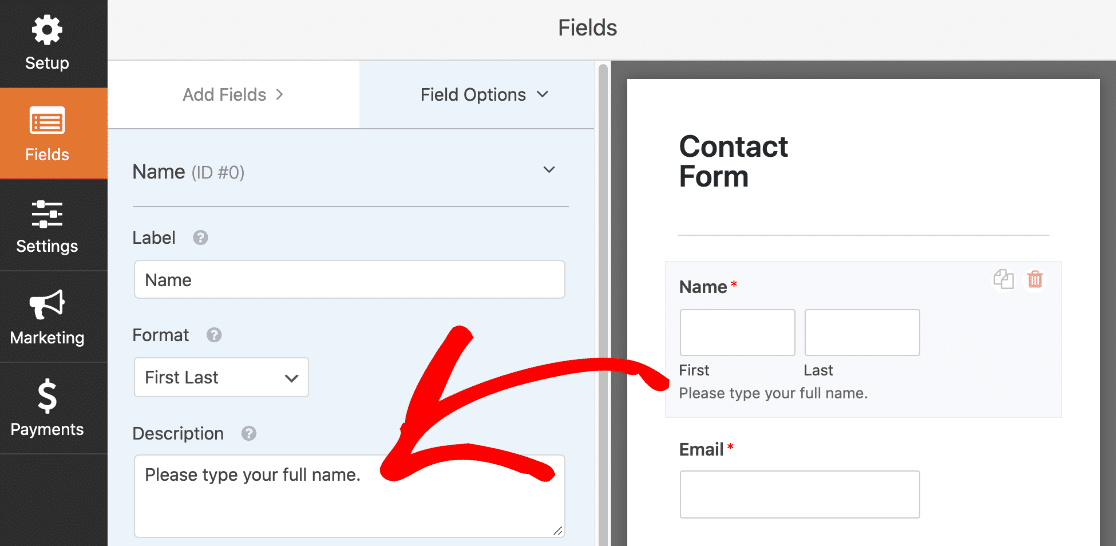
Now let’s check the messages that will be sent when the form is submitted.
In the form builder, click Settings, and then click the Notifications menu item on the left.
On the right, you can see the notification email that will be sent to you when your form is submitted. You can customize the email here if you want to.

Did you notice that the email will be sent to {admin_email}? That’s a placeholder for the Administrator email address in WordPress.
You can delete {admin_email} and type in your business email address here, or change the admin email address in WordPress if it’s wrong.
Next, click Confirmations. You can customize the message that shows up when the form is submitted. This is optional, so you can just leave the default message if you’re happy with it.

And that’s it! It’s time to click the Save button at the top. You can close the form builder by clicking the X at the top-right of the form builder window.
And we’re done using the form builder. All we need to do now is publish the Contact page.
Step 4: Publish Your Elementor Contact Form
You can publish your Contact page in exactly the same way that you publish regular pages in Elementor.
All you need to do is click the green Publish button at the bottom.
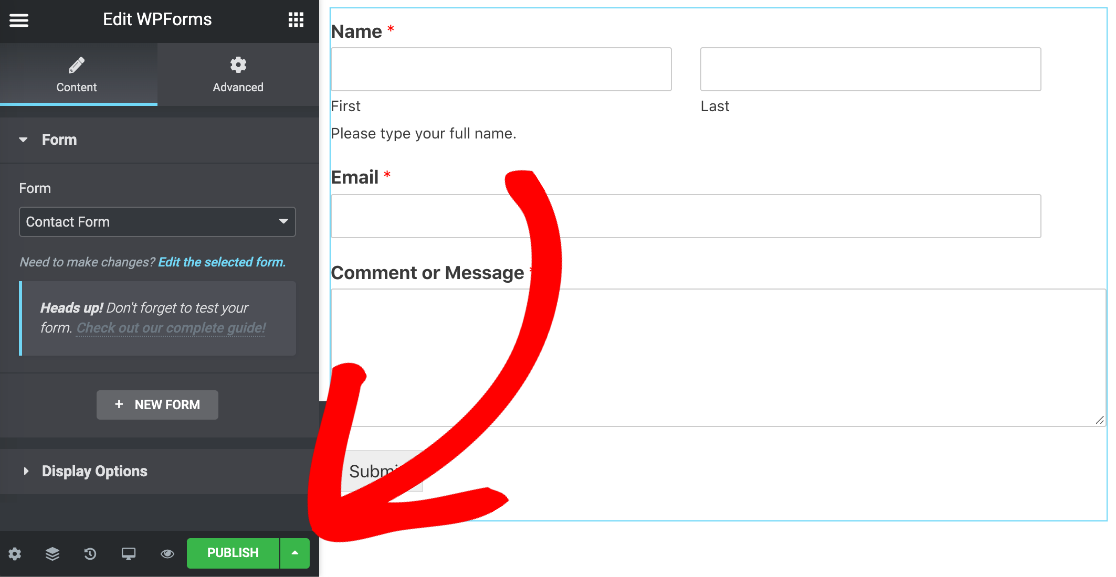
Finally, click Have a Look to see your contact form on your website.

And that’s it! Now you have a custom Elementor contact form on your website.

If you’re just starting out with Elementor, your layout might be pretty basic. If you’d like help with designing the rest of the Contact page, check out this article on how to create custom WordPress layouts in Elementor.
Create Your Elementor Contact Form Now
Next Step: Fix Your Contact Form Emails
Elementor contact form not working? Sometimes there can be problems with email delivery when using a contact form. This can be a problem with all websites, not just sites built with Elementor.
Here’s the good news: this is an easy problem to fix. Check the right way to configure your WordPress email settings so that you always get emails from your Elementor forms.
Ready to build your form? Get started today with the easiest WordPress form builder plugin. WPForms Pro includes Elementor integration and offers a 14-day money-back guarantee.
If this article helped you out, please follow us on Facebook and Twitter for more free WordPress tutorials and guides.
The post How to Make an Elementor Contact Form (The BEST Way) appeared first on WPForms.
source https://wpforms.com/how-to-elementor-contact-form/