Is WooCommerce not sending emails from your store? When you’re running an eCommerce store, you need to make sure customers get emails without any delays.
In this article, we’ll help you fix WooCommerce not sending emails quickly with a plugin. This solution is easy to set up and you don’t need to write any code.
How Do I Fix WordPress Email Problems?
You can easily fix WordPress email problems with the WP Mail SMTP plugin.
WP Mail SMTP sends all of your WordPress emails through a 3rd party email provider. The emails will be properly authenticated, which means they won’t wind up in your customers’ spam folders.
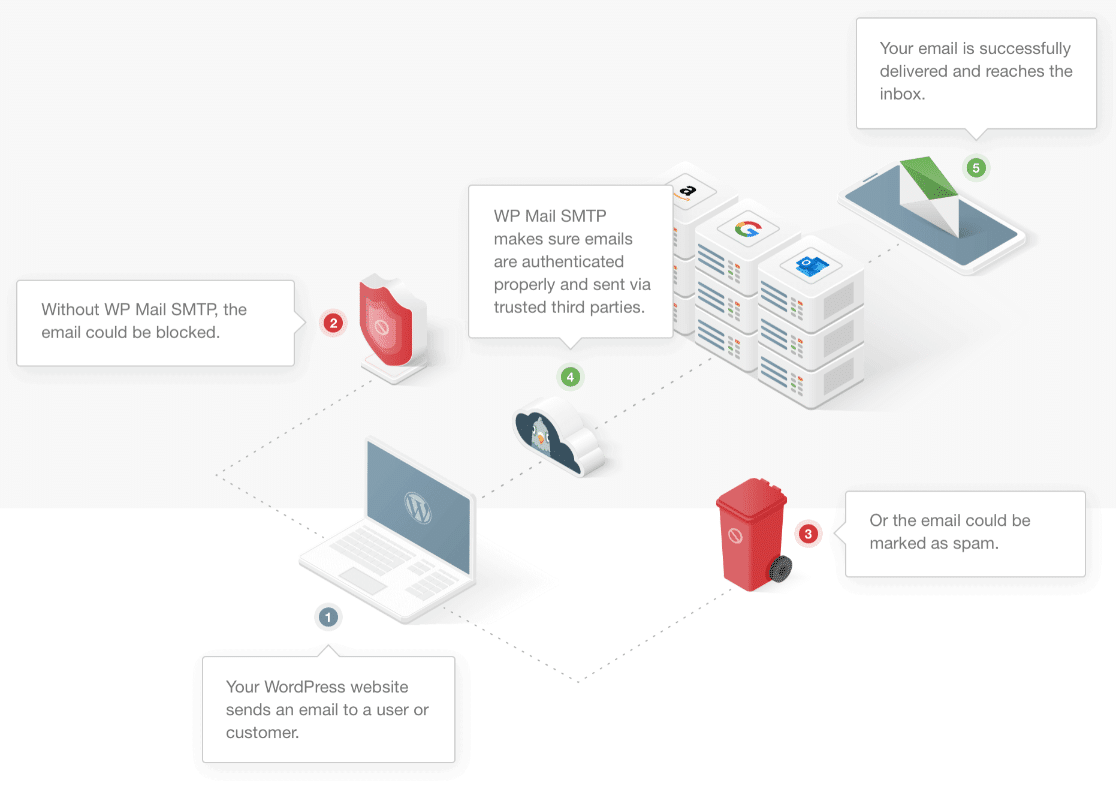
By default, WordPress uses the mail() function in PHP. This is normal when emails are sent through a web host. But many email servers don’t trust emails that are sent this way because they aren’t authenticated. That’s the main reason that emails from WordPress can get lost, or get filed into your Junk folder.
WP Mail SMTP solves all of these problems. You can choose your SMTP provider according to your budget and the number of emails sent from your store. And because it’s easy to configure, you don’t need to contact your hosting provider to set it up.
How to Fix WooCommerce Not Sending Emails
We’re going to walk through 4 steps to fix WooCommerce not sending emails.
- Check Email Settings in WooCommerce
- Install the WP Mail SMTP Plugin
- Choose a New Mailer for WooCommerce Emails
- Test WooCommerce Email Sending
Let’s quickly check your WooCommerce email settings before we set up your new SMTP plugin.
Step 1: Check Email Settings in WooCommerce
To start, we’re going to look at some common problems with WooCommerce not sending email.
When you start an online store with WooCommerce, it’ll create a set of order statuses, including:
- Pending – Payment hasn’t been received yet
- Processing – Payment has been received and the order is confirmed
- Completed – The order has been shipped.
WooCommerce sends emails automatically when an order moves from one status to another. But if the emails aren’t set up correctly, you and your customer might not receive them.
So the first thing we want to check is that we have the right emails set up and they haven’t been deactivated.
To start, open up the WordPress dashboard. In the left hand navigation, go to WooCommerce » Settings.
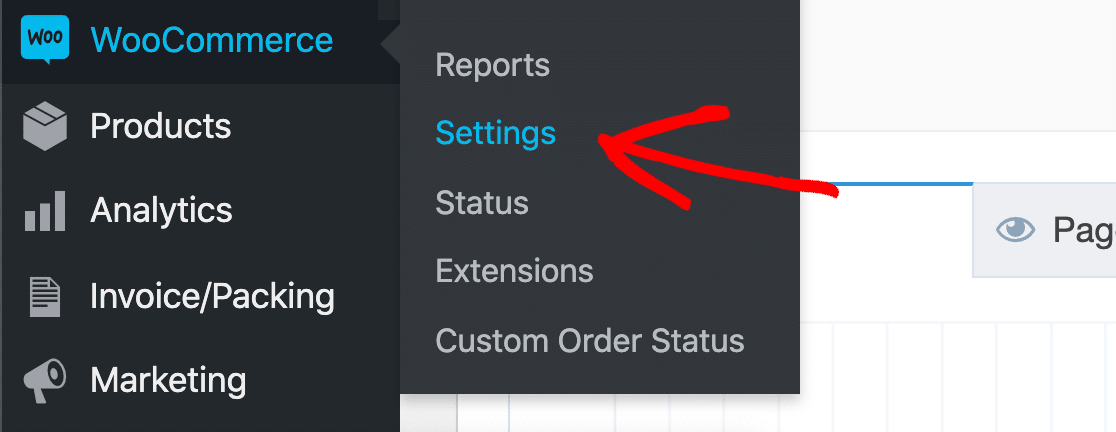
Look to the tabs across the screen and click the Emails tab.
In this list, you’ll see all of the emails that should be sent from your store. You can check each email template by clicking the Manage button on the right.
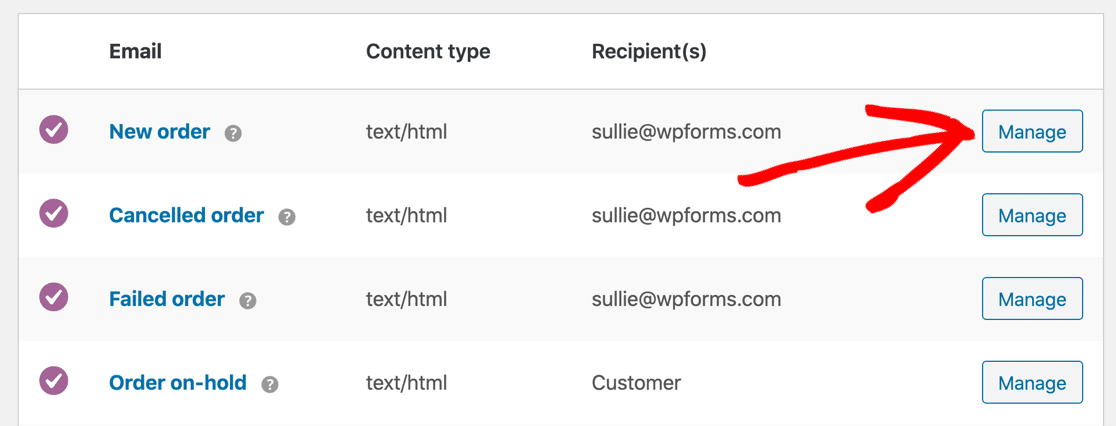
In the email template, you’ll want to check that the email is enabled. Note that if the email is sent to the customer, there won’t be a Recipient field here.
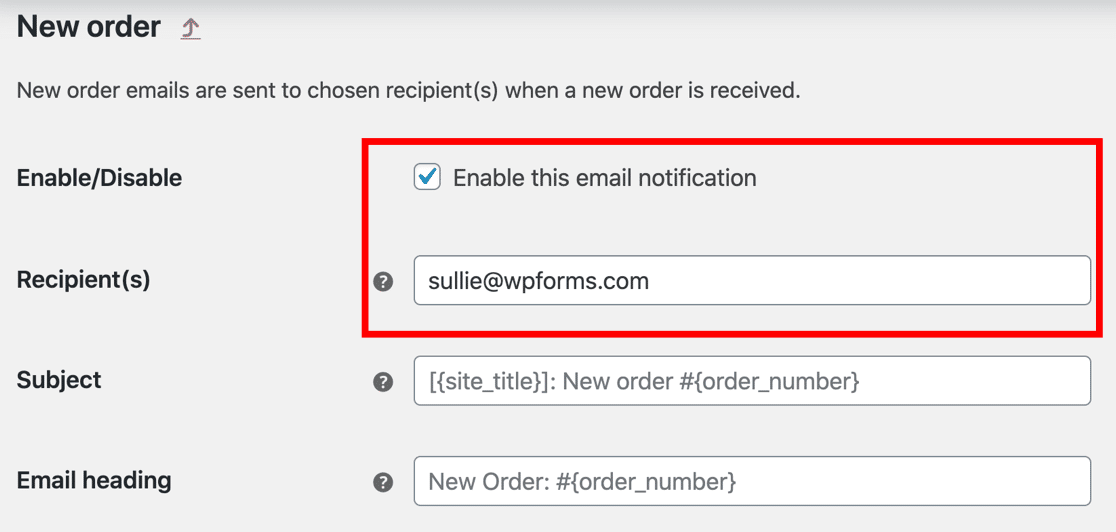
Sometimes emails get disabled by accident, and this can be a reason for WooCommerce not sending email. One by one, check out each template and make sure all of the emails are enabled.
If everything looks good, let’s check that new orders are coming in with the right status.
Step 2: Check Payment Status in WooCommerce
When you get an order in WooCommerce, it will be assigned a status automatically. If payment has been taken, it should show as Processing.
If you see that new orders have a different status, it might mean that WooCommerce is not sending emails because the status is being set to something else.
To check, go to WooCommerce » Orders.
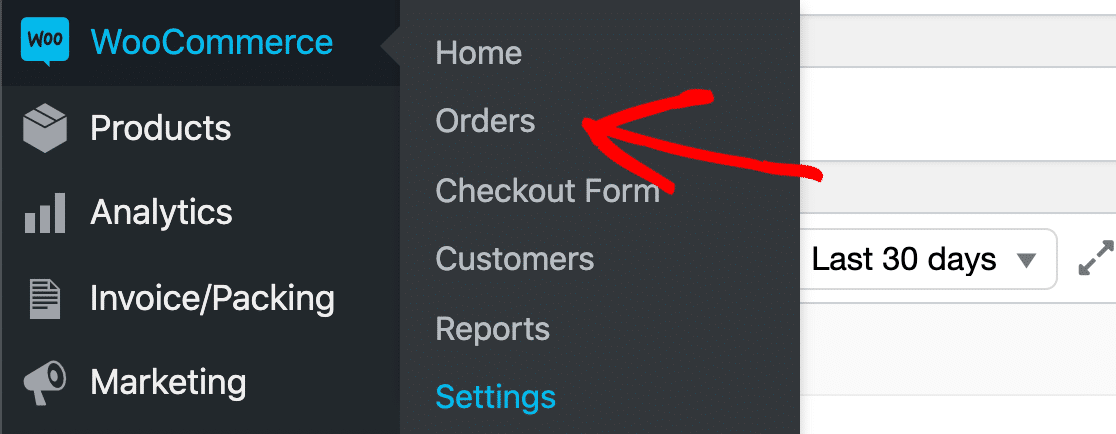
Now check the status of your recent orders. If you don’t have any, you’ll want to create a test order and then check the result here:
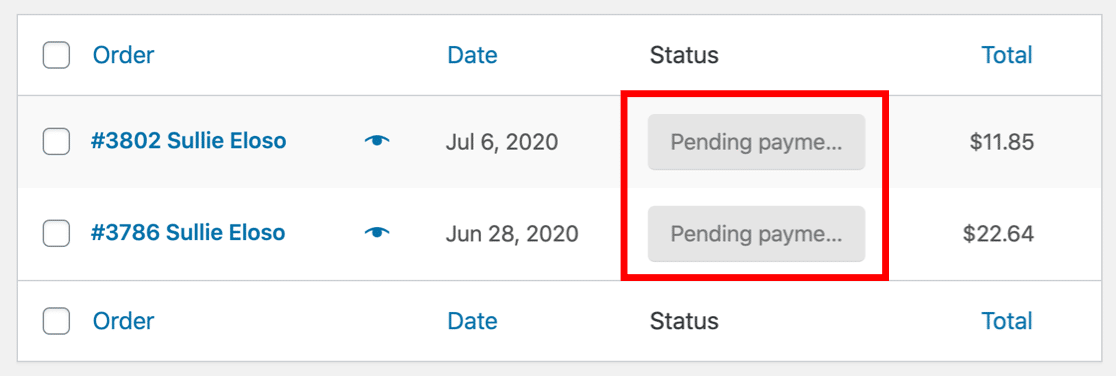
In this example, the orders are in Pending. By default, the Pending status doesn’t send any notifications, so this could explain why WooCommerce isn’t sending emails when you expect it to.
Are your emails going into Pending and you’re not sure why? It might be because:
- The customer ordered something but left before completing payment
- Your payment gateway is initiating payments but failing to complete them
- You have a manual payment method set up, like a bank transfer, and you need to manually confirm that the bank transfer has been received.
If your orders show the status of Processing, then both you and the customer should have received an email. If that’s not happening, it’s likely the emails are being treated as spam.
Let’s set up WP Mail SMTP now to fix these issues with WooCommerce not sending emails.
Step 3: Install the WP Mail SMTP Plugin
Now we’ve checked all of your WooCommerce email settings, we’ll go ahead and install the WP Mail SMTP plugin.
SMTP stands for simple mail transfer protocol. It’s the method email servers use to send emails. The WP Mail SMTP plugin lets you use an SMTP provider outside of your regular web hosting account for better deliverability.
To start, install and activate the WP Mail SMTP plugin in the WordPress dashboard. If you need help with this step, check out this beginner’s guide to installing a plugin in WordPress.
Next, click WP Mail SMTP » Settings.
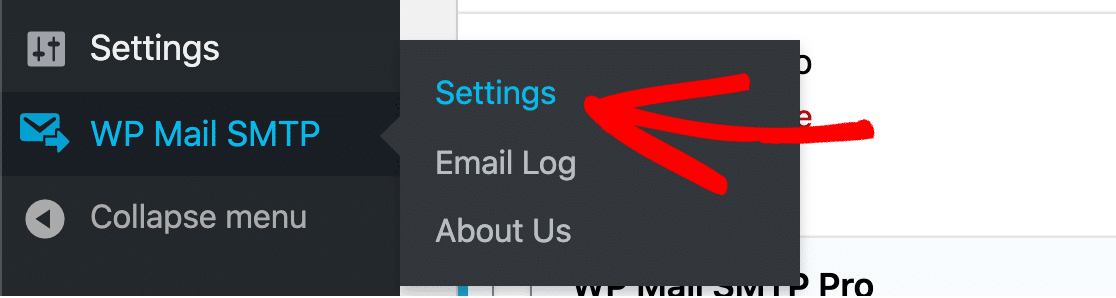
Now it’s time to choose your new email service.
Step 4: Choose a New Mailer For WooCommerce Emails
With WP Mail SMTP, you can choose a new email provider that will handle all of the outgoing emails from WooCommerce.
WP Mail SMTP supports lots of different services. The options are slightly different in the free version vs the Pro version.
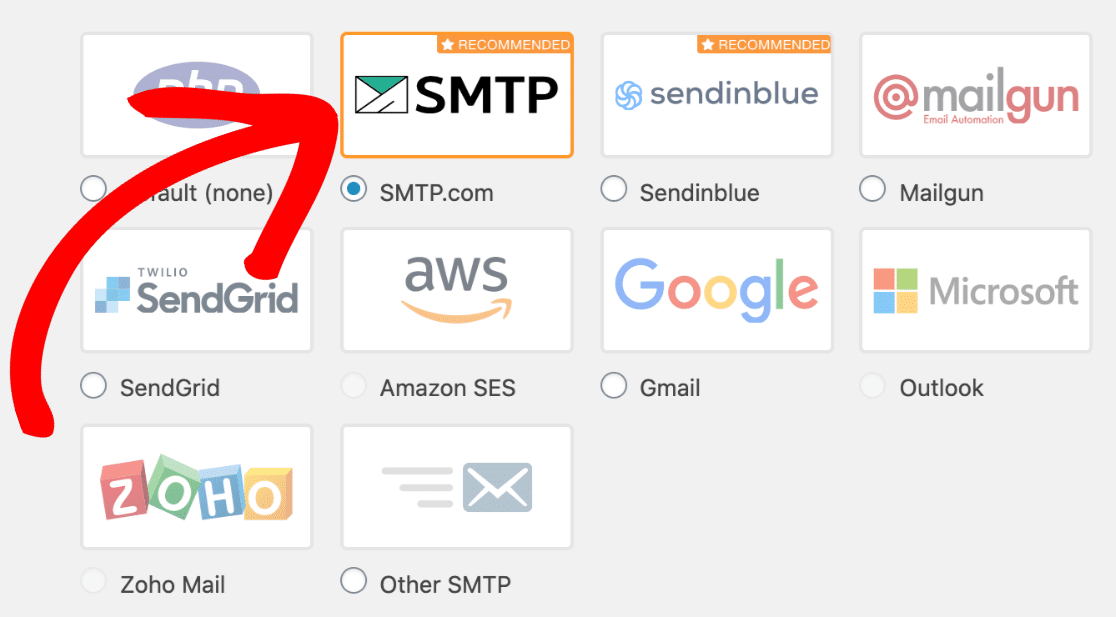
If you want to fix WooCommerce not sending email, we recommend that you choose a mailer service that can handle transactional emails.
Transactional emails are WooCommerce email notifications that are sent when the user does something on your site, like:
- Password recovery emails
- New order confirmation emails
- Shipping notifications.
It’s super important that transactional emails are delivered instantly to give your customers the best experience. Some service providers specialize in this type of email, so choosing the right mailer can help with deliverability.
At this point, you’ll want to click the link for your chosen mailer to jump to the setup tutorial:
- SMTP.com
- Sendinblue
- Mailgun
- SendGrid
- Amazon SES
- Google (Gmail or G Suite)
- Microsoft Outlook
- Zoho Mail
- Other SMTP (if you want to use your ISP’s SMTP server)
The tutorial you choose will walk you through all of the email sender options that are relevant to your new provider, including the From Name that your emails will be sent from.
That way, all of the emails from your contact form will also be sent using the same details as your store notifications.
Once you’ve configured your service, save changes. Then switch back to this tutorial to test your new email sender.
Step 5: Test Your WooCommerce Emails
Congratulations! You’ve set up WP Mail SMTP on your WordPress site. From now on, emails shouldn’t get caught in spam filters.
To check, you can send a test email to check that WooCommerce is sending emails correctly. We’re going to turn on email logging in WP Mail SMTP to make sure.
There are 2 options:
- Email Log – This keeps a record of the date, subject, and email headers for every email sent from your WooCommerce store.
- Log Email Content – This will log the entire contents of every email sent from your site.
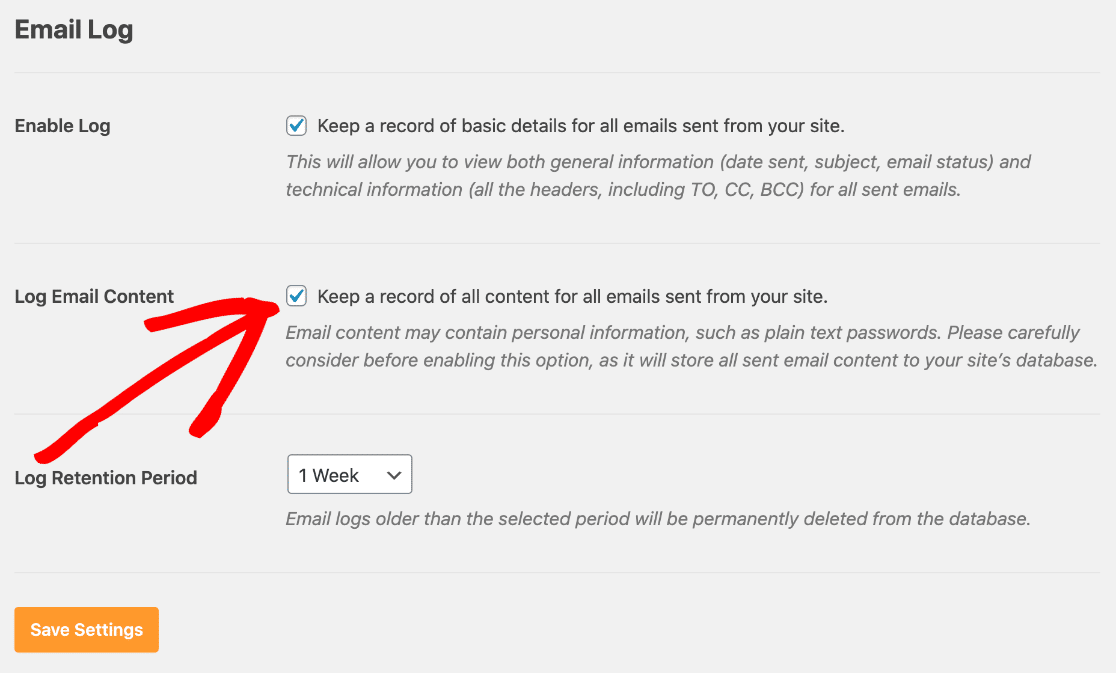
Be careful with the Log Email Content setting. The Log Email Content will save things like:
- Personal details
- Passwords
- Order details
- And more.
This could be a security or privacy risk. And if you have a busy online store, your database will quickly grow larger and larger as it saves every single email. A bloated WooCommerce database can be bad for store speed and performance.
We recommend that you only use Log Email Content for a short time, then come back and turn it off as soon as you know the WooCommerce plugin is sending email reliably.
And that’s it! We’ve walked through all of the steps to fix WooCommerce not sending emails on your site.
Next Step: Boost Your WooCommerce Sales
Next, it’s time to think about optimizing your store for maximum conversions.
Did you know that you can use WPForms to make a simple order form? It could be a great way to boost sales by letting customers order quickly. After that, check out our list of best WooCommerce plugins to boost sales.
Ready to build your form? Get started today with the easiest WordPress form builder plugin. WPForms Pro includes free form templates and offers a 14-day money-back guarantee.
If this article helped you out, please follow us on Facebook and Twitter for more free WordPress tutorials and guides.
The post How to Fix WooCommerce Not Sending Emails (The FAST Way) appeared first on WPForms.
source https://wpforms.com/woocommerce-not-sending-emails/