
Is Gravity Forms not sending email from your site? Diagnosing email delivery problems can be super tricky if you’re not sure what’s going wrong.
In this article, we’ll show you the fastest way to fix Gravity Forms email problems. If emails from your forms are going missing, or landing in your Junk folder, this guide will solve the problem.
How Does Gravity Forms Send Email?
Gravity Forms sends email through your web server. In fact, all emails from your WordPress site are sent this way by default.
Your server uses the mail() function in PHP, which is a pretty basic way to send emails. It doesn’t authenticate the emails, and that’s why they’re sometimes rejected as spam.
If this happens, you (or your visitors) might notice that emails from your site go into the Junk folder. But sometimes, they just seem to disappear.
So it might look like Gravity Forms is not sending email when the emails are actually getting lost on the way to the recipient.
The WP Mail SMTP plugin easily solves this problem. It sends email through a different mailer service so that your emails are properly authenticated. The image below shows how WP Mail SMTP works.
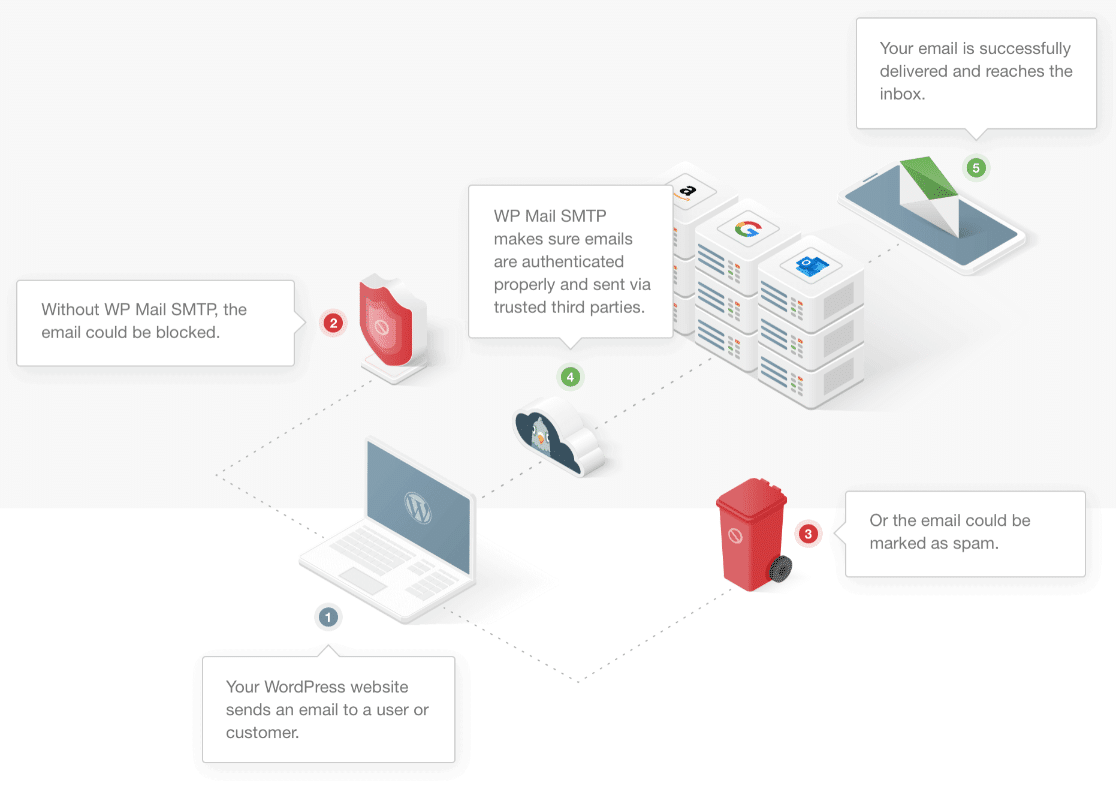
As you can see, WP Mail SMTP will fix Gravity Forms not sending email. It uses another email service, not the unreliable mail() function that WordPress uses by default.
Did you know that WP Mail SMTP is developed by the WPForms team? If you want the best possible experience, we recommend using WPForms and WP Mail SMTP together.
How to Fix Gravity Forms Not Sending Email
In this article, we’ll look at the settings in Gravity Forms that might affect email notifications. After that, we’ll set up WP Mail SMTP to fix email delivery problems.
- Test Your Contact Form
- Check Your Gravity Forms Notifications
- Install the WP Mail SMTP Plugin
- Choose a New Mailer for Gravity Forms
- Test Your Gravity Forms Emails
First, let’s test the form to make sure that it’s sending entries correctly.
Step 1: Test Your Contact Form
Sometimes forms can stop working unexpectedly. If you’ve recently changed themes or plugins on your site, it’s possible that a new code conflict might be stopping your forms from submitting entries.
Sending a test entry is an easy way to figure out if there’s a problem with your form plugin.
Go ahead and fill in your form as a visitor normally would. Then try to submit it.
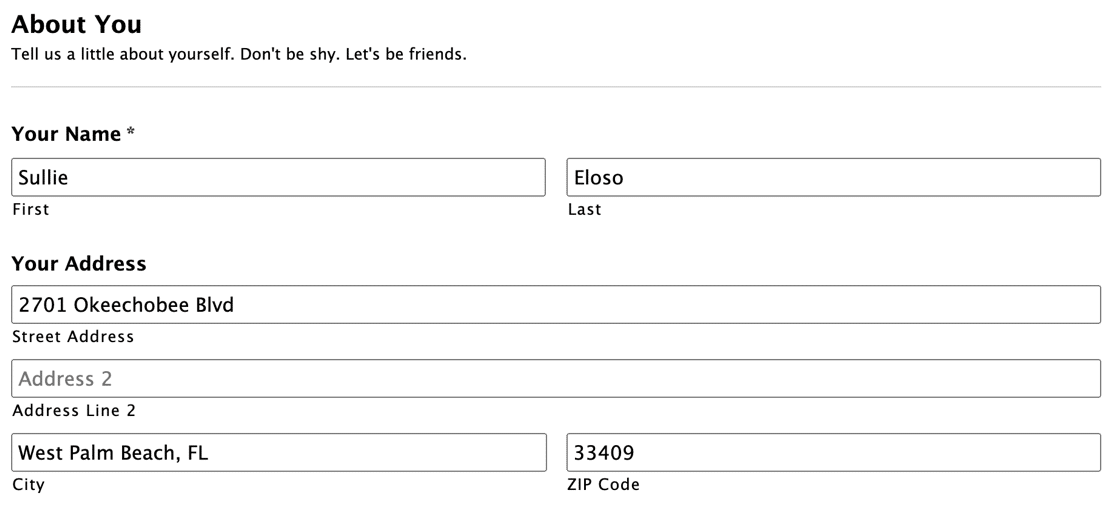
If you have difficulty submitting the form, that might suggest a plugin conflict. For example, you might notice that the form is slow to submit, or the Submit button doesn’t do anything when you click it.
If that’s the case, you could try switching to a free contact form plugin to see if that helps. WPForms Lite is 100% free forever. It lets you create different types of WordPress forms including:
If your form submitted successfully with Gravity Forms, you’ll want to check that the entry was saved. Let’s do that now.
Head to your WordPress dashboard. Under Forms, click Entries.
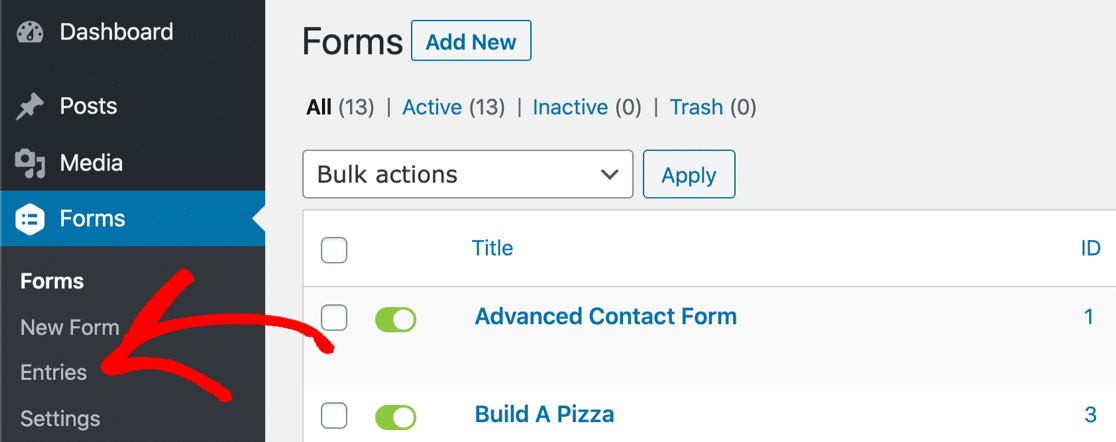
If your form’s working, you should see your entry listed here:
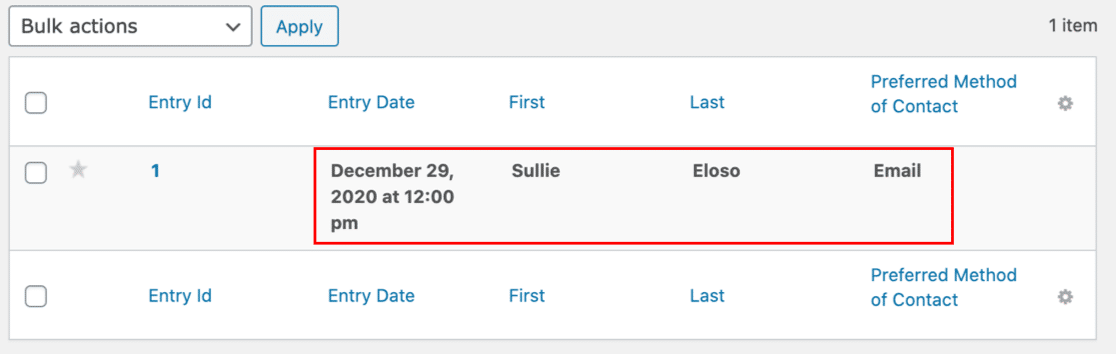
Is everything OK so far? Now let’s look at your Gravity Forms email notifications.
Step 2: Check Your Gravity Forms Notifications
Each form in Gravity Forms has its own set of email notifications. You can switch the notifications on and off, and you can also choose which email addresses will receive each notification.
The email settings in Gravity Forms are a little different from WPForms, so it’s worth checking that everything is correctly set up. In particular, you’ll want to check your conditional notifications.
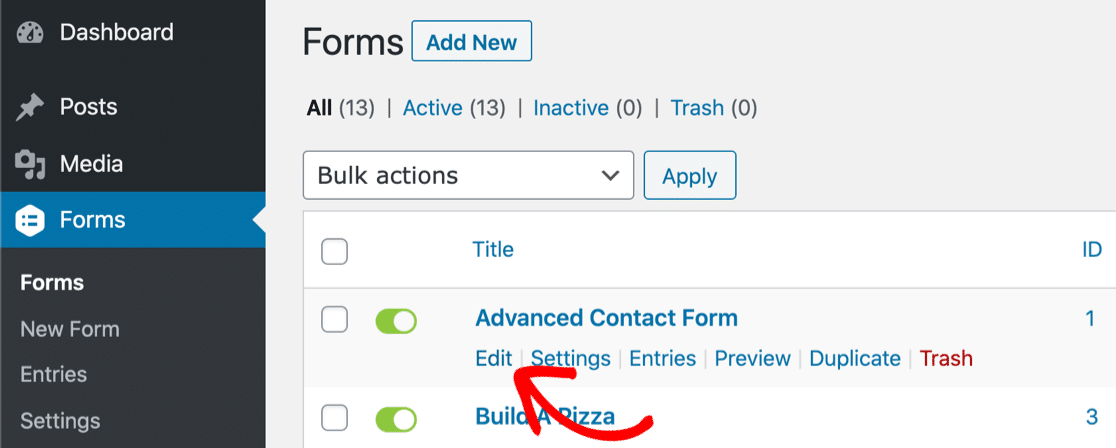
In the WordPress dashboard, click Forms to see a list of all of the forms in your account. Hover over the form that isn’t sending email and click Edit.
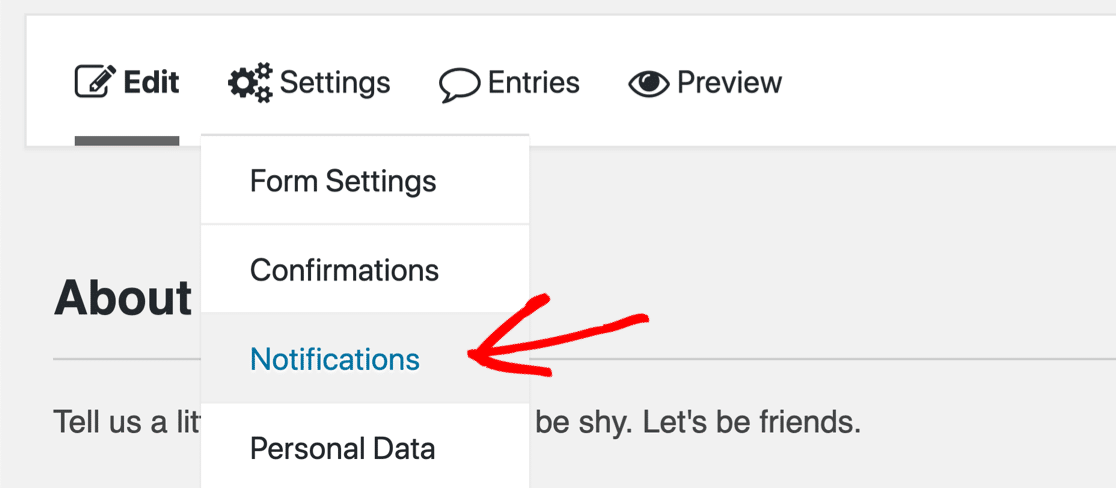
Look to the tabs across the top and hover over Settings. Then click Notifications.
Now check to see that the notifications you want are turned on. This form has just 1 set up, and the switch here should be green.
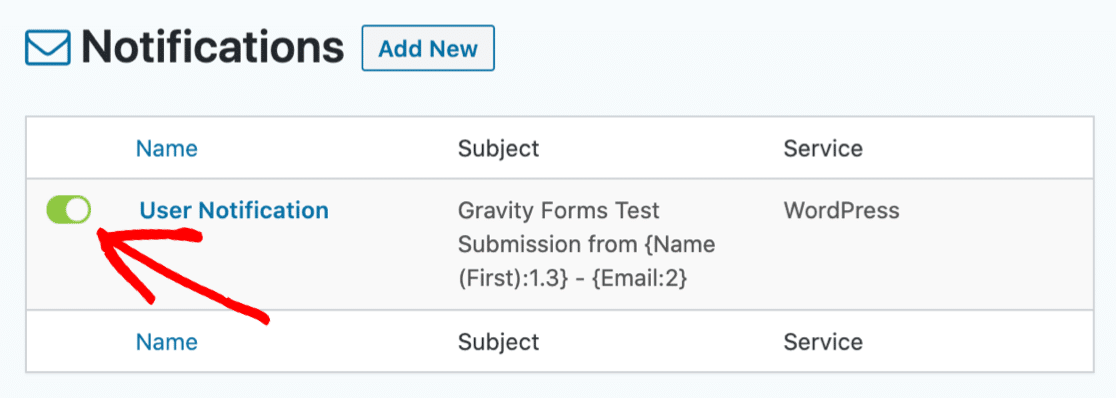
Next, you can click on the name of the notification to edit the settings.
Configuring the Send To Address
Gravity Forms and WPForms set the form ‘Send To’ email address differently. If you’re not familiar with these settings, it’s a good idea to dive in and check that they’re set up properly.
We already opened up the form notification settings. At the top, you’ll see 3 different settings for Send To. We marked them here with a red outline:
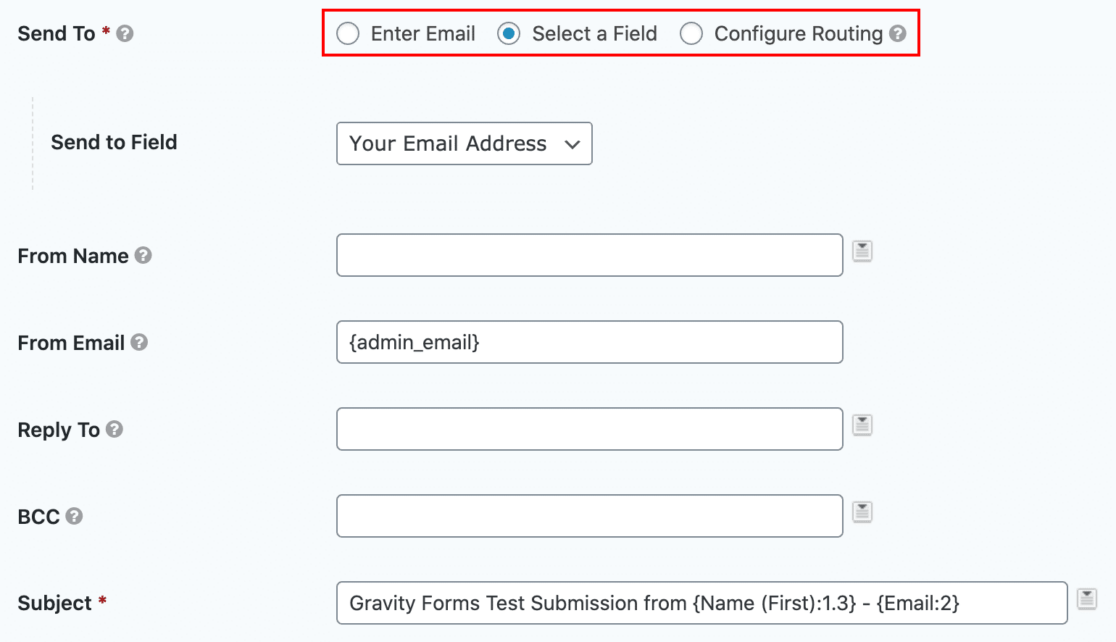
Here’s what these settings do.
- Enter Email – This lets you type in an email address for the notification. If you have this option selected, check that the email address is correct with no typos or formatting mistakes.
- Select a Field – This lets you select a form field from the dropdown. You’ll want to use this setting for user notifications since this will send an email to the person filling in the form.
- Configure Routing – This setting lets you use conditional logic to decide which email address will receive the notification. This is the most complicated setting, and it’s the easiest to get wrong.
Here’s an example of what Configure Routing looks like for the email field.
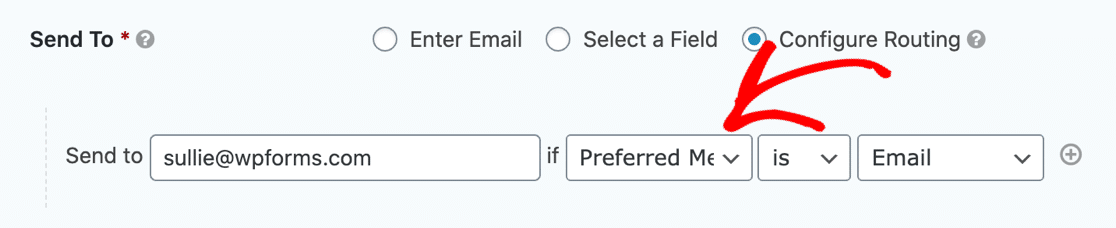
If you have this logic set up incorrectly, it’s possible that Gravity Forms won’t send email when you expect it to. In our example, it’ll only send an email notification if the user selects their preferred contact method as ‘Email’.
To test your form, switch to a simpler method temporarily (such as Enter Email) and see if that solves the problem with Gravity Forms not sending email. If it does, it’s possible you had a routing rule that was stopping notifications from being sent.
Still having problems? Let’s install the WP Mail SMTP plugin to fix Gravity Forms not sending email for good.
Step 3: Install the WP Mail SMTP Plugin
Now we’ve checked all of your Gravity Forms email settings, we’ll go ahead and install the WP Mail SMTP plugin.
WP Mail SMTP is created by the makers of WPForms. It lets you easily use a 3rd party mailer service to authenticate your emails using DKIM, SPF records, or DMARC.
You can download the free version from the WordPress plugin repository, or upgrade to WP Mail SMTP Pro for more features.
If you buy the WP Mail SMTP Elite plan, you can get White Glove Setup. That means an expert will handle the whole setup process for you.
If you’d prefer to install and set up the plugin yourself, let’s look at the steps.
To start, install and activate the WP Mail SMTP plugin. If you need help with this step, check out this beginner’s guide to installing a plugin in WordPress.
Next, click WP Mail SMTP » Settings.
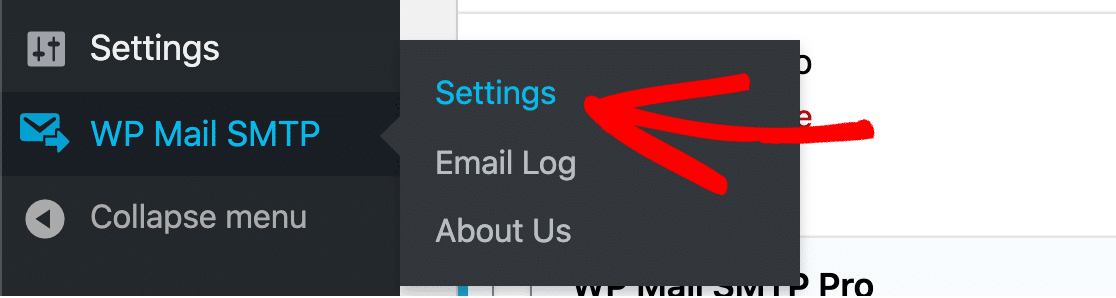
Now we have the main plugin options open, it’s time to choose your new email service.
Step 4: Choose a New Mailer For Gravity Forms
WP Mail SMTP lets you choose from different mailing services. So whether you have a small, personal website or a large eCommerce store, there’s an option that will suit you.
For a hobby or personal site, you can use the Other SMTP option in WP Mail SMTP to use the SMTP details provided by your ISP.
There’s also a Google option that lets you send email through a Gmail or G Suite account. This is also a great option for small sites that send a few emails a day.
For larger sites, there are tons of services you can sign up for like SMTP.com and Sendinblue. Many of these email services have free trials to help you get started.
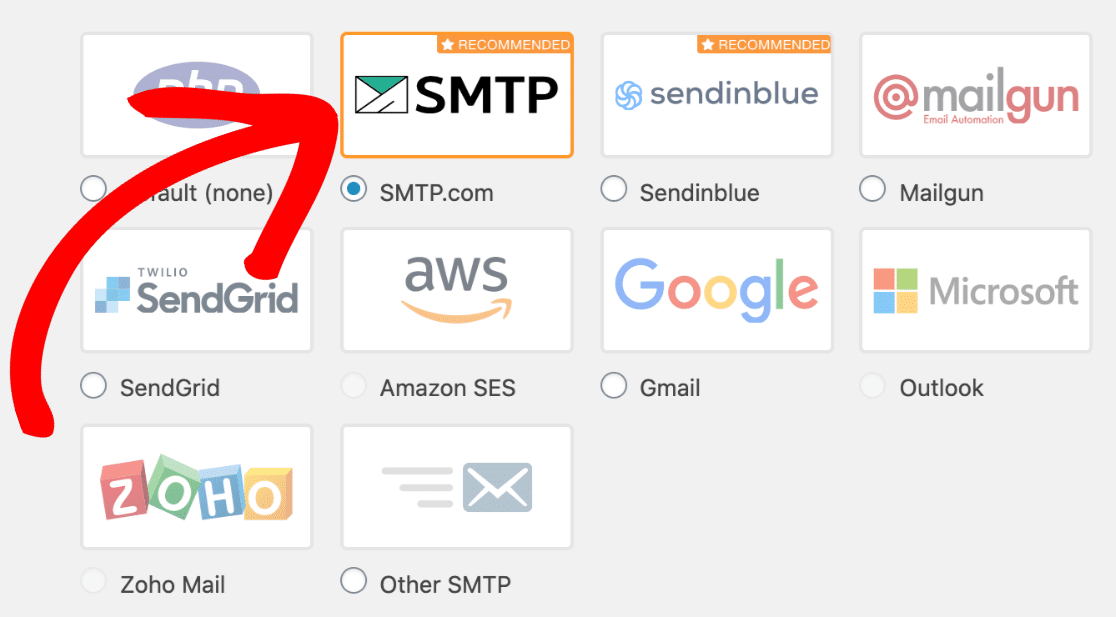
Have you decided which mailing service to use? In the list below, click the link for your chosen mailer to jump to the setup tutorial:
- SMTP.com
- Sendinblue
- Mailgun
- SendGrid
- Amazon SES
- Google (Gmail or G Suite)
- Microsoft Outlook
- Zoho Mail
- Other SMTP – choose this option to use the SMTP details from your ISP.
When you set up your mailer, you’ll be able to specify the From Name and email address for all of the emails sent from your site.
All set up? Great. Let’s check to see if Gravity Forms is sending emails now.
Step 5: Test Your Gravity Forms Emails
Congratulations! Now you’ve set up WP Mail SMTP, you should find that your problems with Gravity Forms not sending email are fixed.
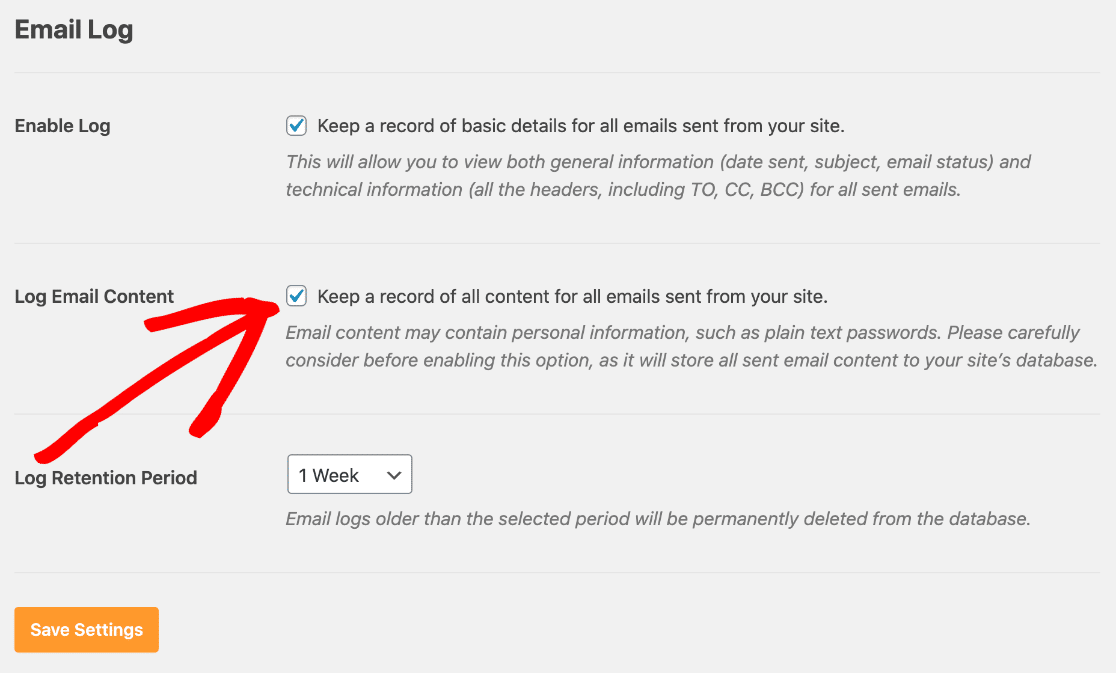
Now’s a great time to set up email logging in the plugin so you can be sure. There are 2 email logging settings in WP Mail SMTP:
- Email Log – This keeps a record of the metadata for every email sent from your site, but not the entire content of each email.
- Log Email Content – This will log the entire contents of every email sent from your site.
For short-term testing, you can turn on Log Email Content. But it’s a good idea to switch it off once you know all of your emails are working.
And that’s it! We’ve walked through all of the steps to fix Gravity Forms not sending emails on your site.
Next Step: Compare Form Plugins
Are you having difficulty with your contact form plugin? It might be worth considering a switch to WPForms.
WPForms is the best online form builder. It has an awesome drag and drop interface and tons of powerful integrations. And it’s also the best survey plugin on the market.
If you want to know how WPForms stacks up, check out these super detailed comparisons:
Ready to build your first form? Get started today with the easiest WordPress form builder plugin. WPForms Pro includes 100+ free templates and offers a 14-day money-back guarantee.
If this article helped you out, please follow us on Facebook and Twitter for more free WordPress tutorials and guides.
The post How to Fix Gravity Forms Not Sending Email (2021 Guide) appeared first on WPForms.
source https://wpforms.com/fix-gravity-forms-not-sending-email/